
SpectaDockPin
Keeps the Dock on the display you choose. On a Mac with several displays, the Dock jumps to whichever screen your pointer rests at the bottom of. SpectaDockPin stops exactly that, and nothing else.
Free and open source (MIT) · macOS 14 or later · Signed and notarized by Apple · Updates itself
A Dock that stays where you left it
On more than one display, the Dock follows your pointer. Leave it near the bottom of a side screen for a moment and the Dock is gone from where you expected it. Turning off “Displays have separate Spaces” stops it, but it also takes the menu bar and full-screen apps away from your other screens.
Other pinning apps block a wide strip along the bottom, let the Dock through while you drag a file, or move your cursor without checking that it helped. SpectaDockPin started from measuring how the Dock actually decides to move, then does the smallest thing that stops it.
Stops the trigger, not the pointer
Only the last row
The Dock moves only after about 0.4 s of pointer events on another display’s very last 1-point row. SpectaDockPin drops exactly those events, moves and drags. Clicks, hover a pixel higher and hot corners keep working.
Checks, then fixes
After sleep, unlock or a display change the Dock can still land elsewhere. SpectaDockPin reads where it really is and brings it back. It only does this when you aren’t using the mouse, and it confirms the Dock arrived.
Option moves it on purpose
Hold Option while pushing against the bottom edge and the Dock is let through. It stays there until you choose Move Dock Back Now.
Nothing else
It never reads the keyboard and collects nothing. The only network traffic is the update check.
Everything in one menu-bar menu
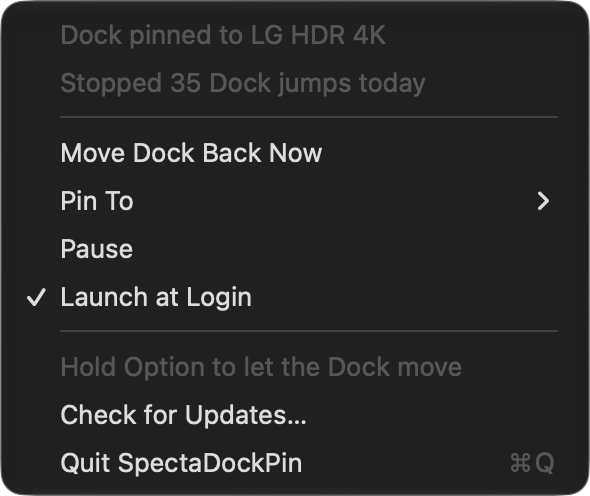
- Pin To the main display (the default) or any connected display. An unplugged choice is remembered; the main display stands in until it returns.
- Move Dock Back Now and Pause when you want them.
- Launch at Login, off until you turn it on.
- The status line says why it is resting: one display only, the Dock on the left or right, or a missing permission.
Install in a minute
- Download the DMG, open it, and drag SpectaDockPin to Applications.
- Open it. It asks for one permission: the privacy setting that lets an app control the pointer (Accessibility; macOS 27 calls it Device Control and Data Access). Turn SpectaDockPin on there.
- That’s it. The Dock stays on your main display. Use Pin To in the menu to choose another one.
Quit SpectaDockPin before you turn that permission off. There are unresolved reports that switching it off while an app is guarding pointer events can freeze all input until a restart.
What it needs
- macOS 14 or later. Developed and measured on macOS 27, Apple Silicon, three displays.
- The Dock at the bottom of the screen, and “Displays have separate Spaces” on. Without it, macOS keeps the Dock on the main display by itself.
- It relies on how the Dock behaves today, which Apple does not document. If SpectaDockPin can’t find the Dock, it pauses instead of guessing.
Built in the open
SpectaDockPin is MIT-licensed. The repository has the app, its tests, and the design document with every measurement behind it (in Korean). It also has DockProbe, the command-line tool that re-runs those measurements after a macOS update.
Issues and pull requests are welcome on GitHub.